
Step-by-Step
How to Move a Single WordPress Post or Page to Another Site
Not a full migration — just the one post or page you've finished, sent to another WordPress install with its images, custom fields, and design intact.
Four steps, from one site to another
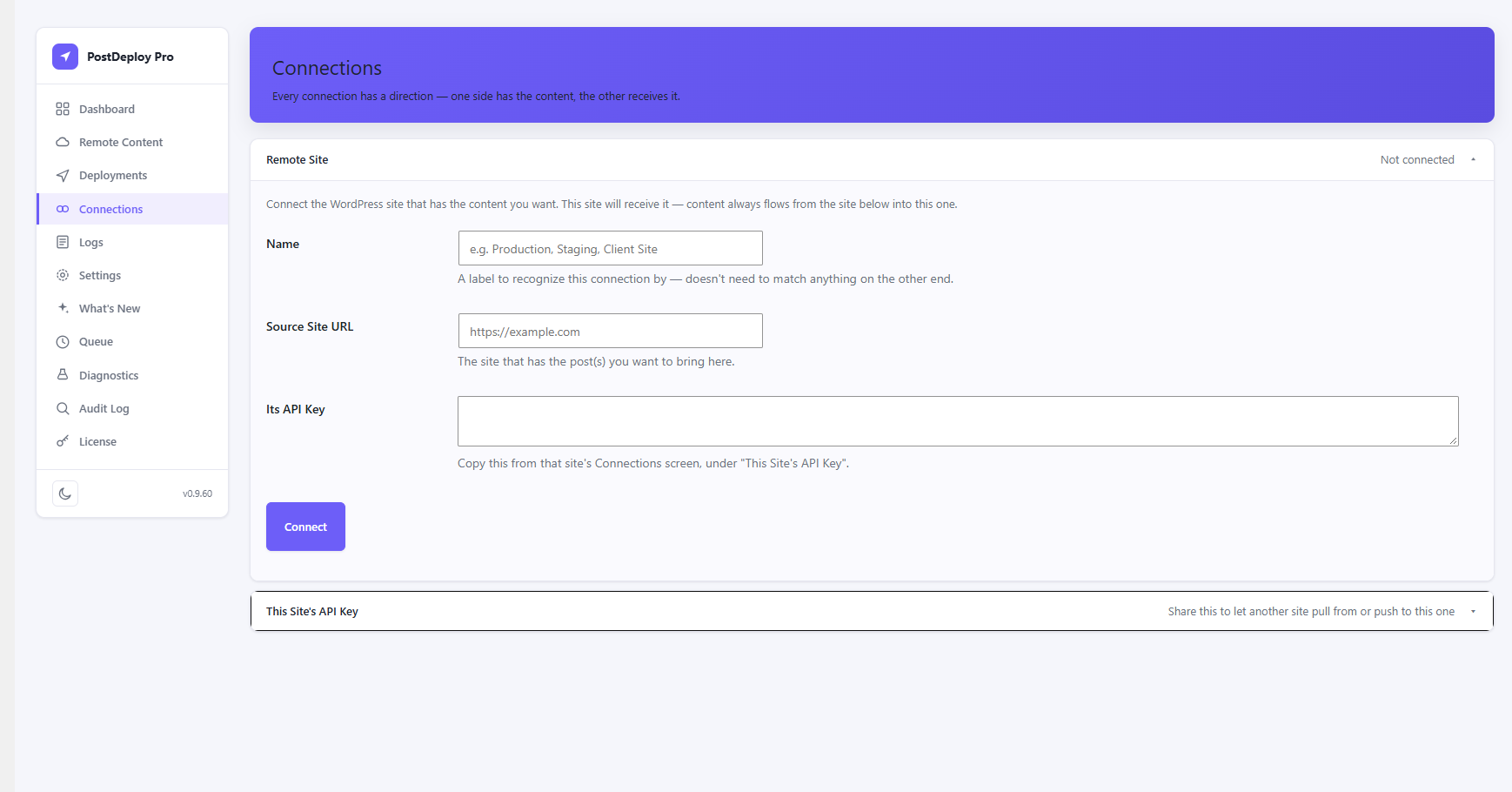
1. Connect the two sites, once
On the destination site, open PostDeploy → Connections and copy its API key. On the source site, add a new connection with the destination's URL and that key. This is a one-time step — every future push or pull reuses the same connection.
2. Open the post and push it
From the post or page you're editing, use the Push action — or, to pull content the other direction, browse Remote Content on the destination and select it from there. Either direction uses the same underlying transfer.
3. Pick the destination
Choose which connected site should receive it. If you're pushing a page that was already sent there before, PostDeploy updates the existing page instead of creating a duplicate.
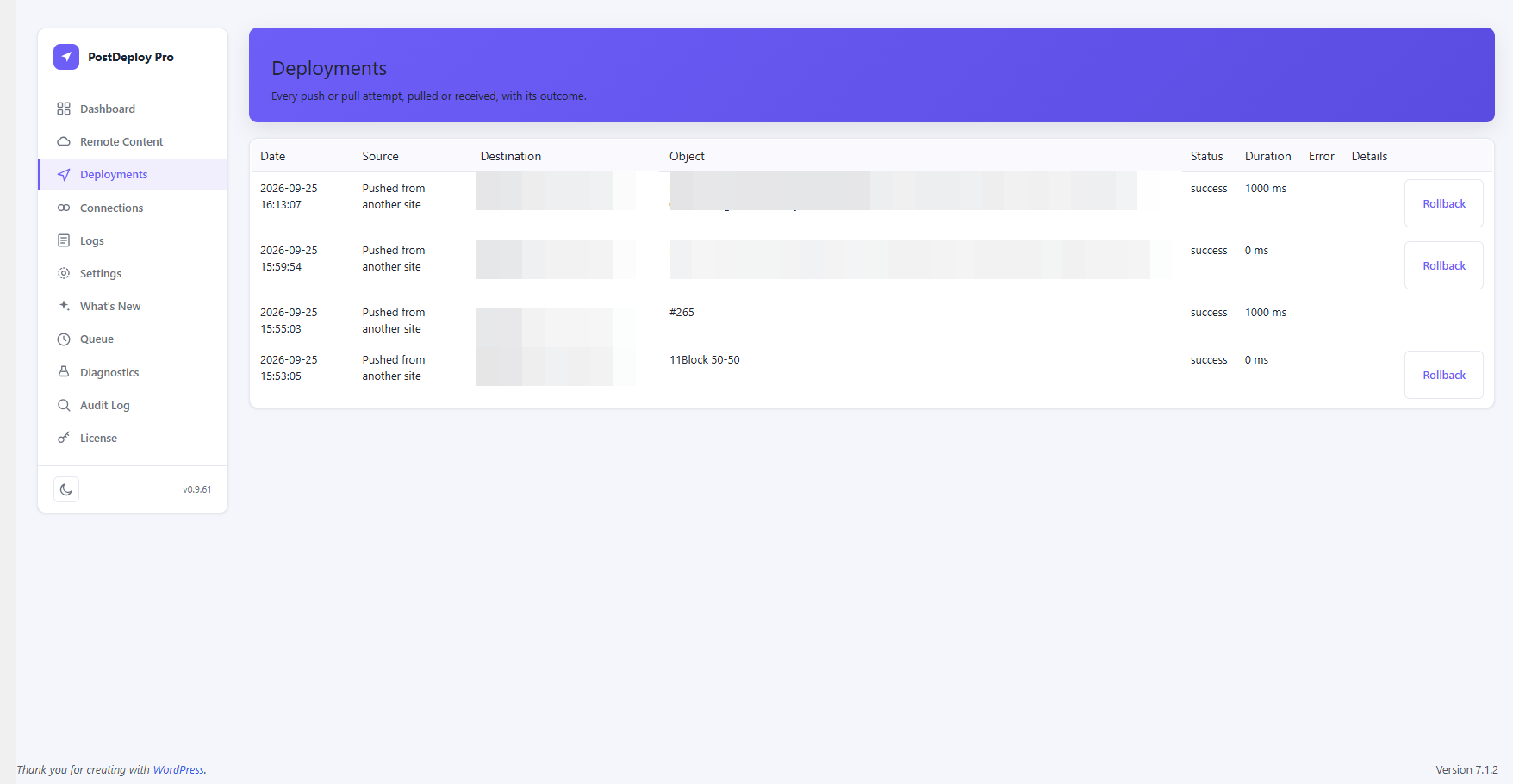
4. Review the result
The push is verified against the destination before it's marked done — confirm the content, and with Pro, that ACF fields, Elementor's design, and any WPML translation links came across correctly.
What happens to media, custom fields, and references
The featured image and any images used in the content are copied into the destination's own media library — not just linked back to the source site. Categories, tags, and custom taxonomy terms are matched or created on the destination.
Plain custom fields move as ordinary data. Fields that store a reference rather than a value — an ACF Image, Gallery, or Relationship field, an Elementor widget's image or internal link, a WPML translation's language group — need more than a copy: the reference has to be resolved to what it should point at on the destination, which is what Pro's ACF, Elementor, and WPML integrations do automatically during the push. Free moves the post, its taxonomies, and its own media correctly on its own; reference resolution for ACF/Elementor/WPML specifically is a Pro feature.
If something doesn't look right
The page arrived but some images are missing
Check whether the image is actually in the media library on the source — files added by FTP outside the uploads folder, or hosted on another domain, are never moved. If it's an Elementor background image specifically, see this post on the id/url issue that can cause exactly this.
An ACF relationship or gallery field is empty or wrong on the destination
This needs Pro's ACF reference resolution — Free copies the field's raw value, which is a source-site ID that means nothing on the destination. See how ACF field resolution works.
I pushed again and now there are two copies of the page
This shouldn't happen through PostDeploy itself — a push to a destination it's already sent that post to updates the existing page, it doesn't duplicate it. Two copies usually means the page was created independently on both sites before they were ever connected. See the full troubleshooting guide.
Stop copy-pasting content between WordPress sites.
Start free, or get Pro for ACF, Elementor, WPML, Rollback, and automation.